Search Engine Optimization
Search Engine Optimization (SEO) is critical for ensuring your white-label channel ticket portals appear correctly in search results like Google. This guide explains how our system handles SEO automatically and how you can customize your channel to maximize visibility.
1. How It Works
Our platform uses a hybrid approach to ensure search engines can find and index your content efficiently. Even though the storefront is a dynamic application, our system ensures that crawlers receive the necessary metadata to index your pages correctly.
2. Enabling Search Indexation
Before customizing content, you must ensure your channel is allowed to be indexed.
- Log in to the Onebox Panel.
- Navigate to Channels > [Your Channel] > Configuration.
- Select the External Tools tab.
- Uncheck the box labeled "Prevent this channel from appearing in search results".
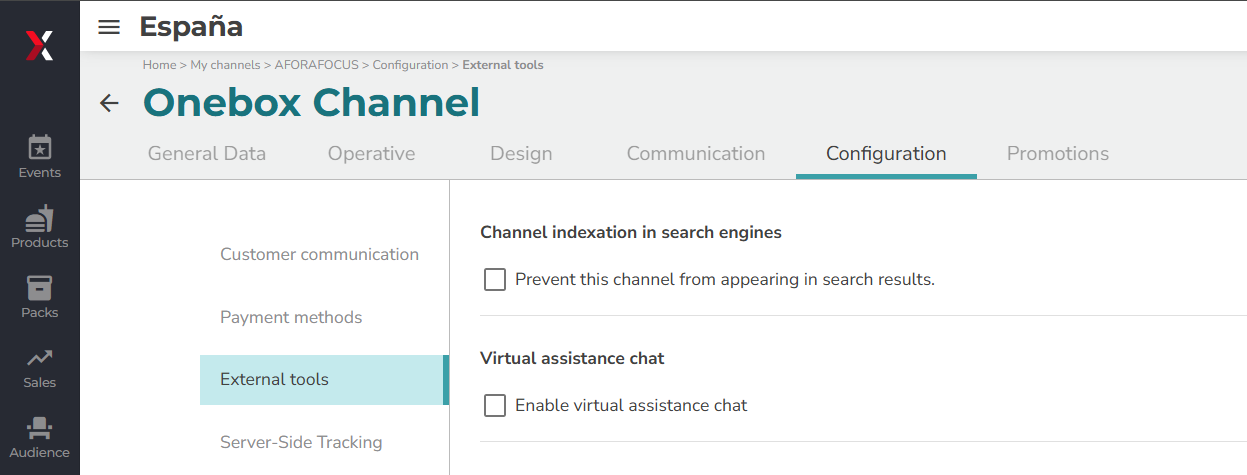
If this box is checked, our system actively tells Google to ignore your entire site. Ensure it is unchecked for SEO to work.
3. Customizing Titles & Descriptions
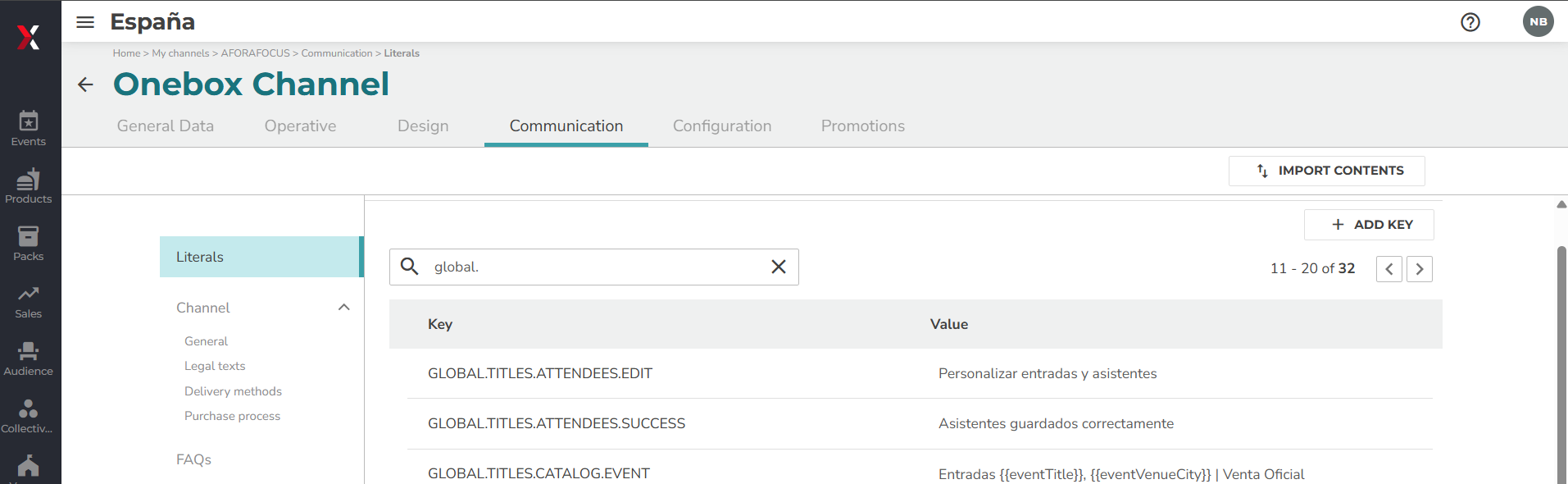
Search engines rely heavily on unique page titles and descriptions to understand what a page is about. You can customize these literals in the Communication section of the panel.
Path: Channels > [Your Channel] > Communication > Literals
A. Important Variables
To make your titles dynamic (so every event has a unique name), use the following placeholders. The system will replace them with real data automatically.
The availability of these variables depends on the page type (Scope).
Scope: Event Detail Page
Variables available when configuring GLOBAL.TITLES.CATALOG.EVENT and GLOBAL.DESCRIPTIONS.CATALOG.EVENT.
| Variable | Description | Source |
|---|---|---|
{{eventTitle}} | Name of the event | event.texts.title || event.name |
{{eventDescription}} | Description of the event | event.texts.description |
{{eventVenueName}} | Name of the venue | event.venues[0].name (First venue)* |
{{eventVenueCity}} | City of the venue | event.venues[0].location.city (First venue)* |
*Note: For the event page, the system takes the first venue from the list, even if the event takes place in multiple venues.
Scope: Session Selection Page (Select)
Variables available when configuring GLOBAL.TITLES.SELECT.SESSION and GLOBAL.DESCRIPTIONS.SELECT.SESSION.
| Variable | Description | Source |
|---|---|---|
{{sessionTitle}} | Name/Date of the session | session.texts.title || session.name |
{{sessionDescription}} | Description of the session | session.texts.description |
{{sessionVenueName}} | Name of the session venue | session.venue.name |
{{sessionVenueCity}} | City of the session venue | session.venue.location.city |
{{eventTitle}} | Name of the event | session.event.texts.title || session.event.name |
{{eventDescription}} | Description of the event | session.event.texts.description |
B. Configuration by Page Type
Here are the specific keys you need to edit to improve your SEO for the most important pages. Search for these keys in the Literals search bar.
1. Main Events List (Homepage)
This is the landing page displaying all your available events.
| Setting | Key | Recommended Value |
|---|---|---|
| Title | GLOBAL.TITLES.CATALOG.EVENTS | Official Tickets |
| Description | GLOBAL.DESCRIPTIONS.CATALOG.EVENTS | Buy official tickets for concerts, theater, and sports. Secure transactions with no hidden fees. |
2. Event Detail Page
The specific page for a single event (e.g., "The Lion King").
| Setting | Key | Recommended Value |
|---|---|---|
| Title | GLOBAL.TITLES.CATALOG.EVENT | Tickets {{eventTitle}} {{eventVenueCity}} | Official Sale |
| Description | GLOBAL.DESCRIPTIONS.CATALOG.EVENT | Official tickets for {{eventTitle}} in {{eventVenueCity}}. Select your best seats and book online securely today. |
3. Session Selection Page (The "Select" Page)
The page where users pick seats for a specific date.
This page must have a unique title using {{sessionTitle}} to avoid "duplicate content" penalties from Google.
| Setting | Key | Recommended Value |
|---|---|---|
| Title | GLOBAL.TITLES.SELECT.SESSION | Tickets {{eventTitle}} {{sessionTitle}} {{sessionVenueCity}} |
| Description | GLOBAL.DESCRIPTIONS.SELECT.SESSION | Buy official tickets for {{eventTitle}} {{sessionTitle}}. Select seats via map. 100% secure booking. |
4. Gift Card Page
| Setting | Key | Recommended Value |
|---|---|---|
| Title | GLOBAL.TITLES.GIFT_CARD.CHECKOUT | Buy Gift Card |
| Description | GLOBAL.DESCRIPTIONS.GIFT_CARD.CHECKOUT | Give the perfect gift. Purchase a [Your Brand] Gift Card online instantly. |
4. Best Practices for SEO
- Keep it brief: Titles should be under 60 characters. Descriptions should be under 160 characters.
- Use Variables: Never hardcode a specific date or event name in a
GLOBALliteral. Always use{{eventTitle}}or{{sessionTitle}}so the system can generate thousands of unique pages for you. - Keywords: Include words like "Tickets," "Official," "Booking," and your "City" in the text naturally.
5. Automated Improvements
We have implemented automatic optimizations to ensure SEO best practices.
1. Redundancy Removal
The system detects and removes repetitive text in titles to avoid keyword stuffing and improve readability.
- Original:
"Lion King - Lion King Madrid | Official Tickets" - Optimized:
"Lion King - Madrid | Official Tickets"
2. Channel Context
To indicate the purchase source (white-label), all page titles are automatically suffixed with the Channel Name or the value configured in the GLOBAL.TITLE literal.
We strongly recommend keeping the GLOBAL.TITLE as short as possible (e.g., just your Brand Name). Long global titles will make every page title too long, which is detrimental to SEO.
Example:
If your channel is called "Ticketerix" and your title is Lion King - Madrid | Official Tickets, the final title will be:
Lion King - Madrid | Official Tickets - Ticketerix
6. Verification
After saving your changes in the Panel, you can verify they are working:
- Open your channel in a web browser.
- Navigate to an event.
- Hover your mouse over the browser tab to see the Title.
- Right-click and View Page Source to search for
<meta name="description">and check the content.